
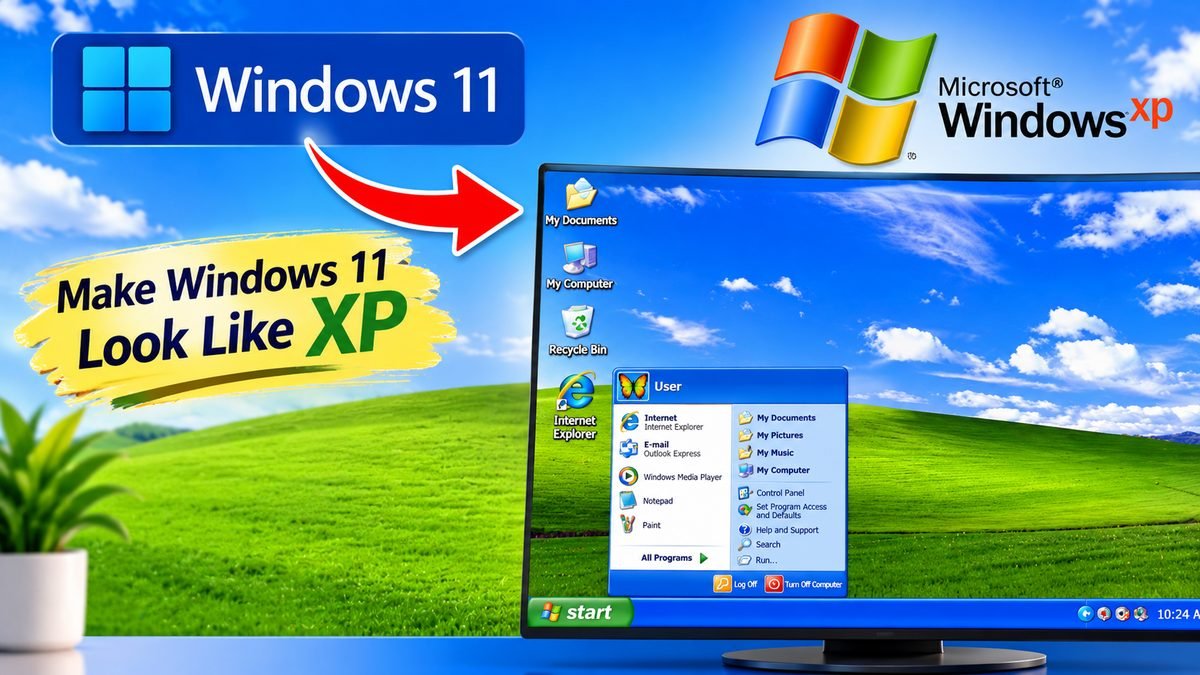
Make Windows 11 Look Like XP: A Complete Guide
Remember the days when Make Windows 11 Look Like XP greeted you with its familiar green Start button, bright blue taskbar, and peaceful Bliss wallpaper? For many people, Windows XP was more than just an operating system. It was a familiar desktop experience that made everyday computer use feel simple and comfortable.
Make Windows 11 Look Like XP has a completely different appearance, with rounded corners, modern menus, and a redesigned taskbar. Although its newer interface offers plenty of useful features, some users still miss the classic Windows XP design.
The good news is that you don’t need to reinstall an old operating system to bring back that nostalgic appearance. You can make Windows 11 look like XP by combining a few personalization settings with trusted customization tools.
You’ll learn how to recreate the classic Make Windows 11 Look Like XP experience using its original-style wallpaper, Luna theme, Start menu, taskbar, icons, and sounds. We’ll also explain which changes are free, which require additional software, and how to restore your original Windows 11 appearance if something doesn’t look right.
ALSO READ: HDR Looks Washed Out Windows 11? Fix It Fast
Can You Make Make Windows 11 Look Like XP?
Yes, you can make Make Windows 11 Look Like XP without replacing your current operating system. However, Windows 11 doesn’t include an official Windows XP theme that changes the entire desktop with one click.
Instead, you’ll need to customize different parts of the interface separately.
You can recreate the famous Make Windows 11 Look Like XP Bliss wallpaper, classic two-column Start menu, blue taskbar, green Start button, Luna theme, traditional desktop icons, familiar system sounds, and classic mouse cursors.
You can achieve a convincing result with free tools such as RetroBar and Open-Shell. More advanced window styling is also possible with paid customization software.
Create A Restore Point Before Customizing Windows 11
Before changing the appearance of your desktop, it’s worth creating a restore point.
Some customization applications modify Make Windows 11 Look Like XP shell settings or interact with Explorer. If an update causes compatibility problems, having a restore point gives you an additional recovery option.
Press Windows + S to open Windows Search. Type Create a restore point and open the matching Control Panel result. Select your Windows system drive and click Configure if system protection is disabled.
Enable system protection, allocate some disk space, and click Apply followed by OK. Now select Create and enter a name such as Before XP Customization. Click Create again and wait until Make Windows 11 Look Like XP confirms that the restore point has been created.
Important: A restore point is not a complete backup of your personal files. Keep important documents backed up separately.
Download And Apply The Windows XP Bliss Wallpaper
One of the easiest ways to make Windows 11 look like XP is to bring back its iconic Bliss wallpaper.
The original Make Windows 11 Look Like XP featured a green rolling hill beneath a bright blue sky. Even without changing anything else, this background immediately givesTyour desktop a familiar appearance.
Find a high-resolution Make Windows 11 Look Like XP Bliss wallpaper from a reputable wallpaper source. Download an image that matches your monitor’s resolution, open File Explorer, locate the downloaded image, and right-click it.
Select Set as desktop background to apply it.
You can also change the background through Make Windows 11 Look Like XP Settings. Press Windows + I, select Personalization, and open Background. Choose Picture from the personalization options, click Browse photos, and select your downloaded wallpaper.
Your desktop should now have the classic Make Windows 11 Look Like XP landscape.
Tip: Choose a high-quality image that matches your screen resolution. A small wallpaper stretched across a large monitor can look blurry.
Install RetroBar To Get The Windows XP Taskbar
The Make Windows 11 Look Like XP taskbar is one of the most recognizable parts of its interface. Its blue background, green Start button, and classic application buttons give it a distinctive appearance.
Make Windows 11 Look Like XP doesn’t offer this taskbar design through its built-in personalization settings. Fortunately, RetroBar can recreate much of the classic experience.
RetroBar is a free, open-source taskbar customization application that supports several older Windows styles, including Make Windows 11 Look Like XP.
How to Install RetroBar
Visit the official RetroBar project on GitHub and download the latest compatible release. Run the installer and follow the installation instructions. Launch RetroBar after installation, right-click its taskbar, and select Properties.
If the installer requests Make Windows 11 Look Like XP Runtime, follow its instructions to install the required runtime from Microsoft’s official website.
Select the Windows XP Blue Theme
After opening RetroBar’s settings, open the Taskbar tab and find the Theme option. Make Windows 11 Look Like XP Blue and enable Quick Launch if you want the traditional XP-style shortcuts.
You can also adjust the taskbar size if necessary. Save your changes when you’re satisfied with the appearance.
You should now see an XP-inspired taskbar instead of the standard Make Windows 11 Look Like XP.
RetroBar may also offer other classic appearances, including Olive Green and Silver, depending on the installed version and available themes.
One thing to remember: RetroBar changes the taskbar, not the entire Make Windows 11 Look Like XP interface. Your modern Settings app and other Windows 11 components will still retain their original appearance.
Replace The Windows 11 Start Menu With An XP Style Menu
The original Make Windows 11 Look Like XP Start menu had a familiar two-column design. It displayed commonly used applications on one side and important folders and system shortcuts on the other.
If you want a more complete transformation, Open-Shell is one of the most useful free customization tools.
Open-Shell allows you to replace the standard Start menu with a classic-style menu and apply compatible visual skins.
Install Open-Shell
Visit the official Open-Shell GitHub project and download the latest stable release. Open the installer, select the Open-Shell Menu component, and complete the installation.
Once installation finishes, open the Open-Shell Menu Settings application.
Configure the Classic Two-Column Start Menu
Open Open-Shell Menu Settings and select Classic with two columns. Enable Show all settings if available, then open the Skin tab.
Select a compatible Make Windows 11 Look Like XP Luna skin and adjust the Start menu appearance according to your preference. Save your configuration when finished.
You may need to download a compatible XP-style skin separately from a reputable source.
Once configured, click the Start button to see your new classic-style menu.
Note: Open-Shell and RetroBar work together to provide a closer XP experience. RetroBar supplies the taskbar, while Open-Shell handles the Start menu.
Apply The Classic Windows XP Luna Theme
Windows XP’s Luna theme is probably the most recognizable part of its visual design.
Its default appearance combines a blue taskbar, green Start button, colorful controls, and blue window elements.
If you want your desktop to resemble the original XP interface more closely, you can explore three classic color variations.
Windows XP Blue
This is the original Luna appearance most people remember. It features a bright blue taskbar, green Start button, and blue visual elements.
Windows XP Olive Green
Olive Green offers a softer appearance with green and earthy tones. It was one of the alternative Luna color schemes included with Make Windows 11 Look Like XP.
Windows XP Silver
Silver provides a cleaner, more neutral look with gray interface elements.
How to Apply an XP-Inspired Window Theme
For more extensive window styling, you can consider WindowBlinds 11 from Stardock.
Visit Stardock’s official website and check the current compatibility and pricing information for WindowBlinds 11. Download and install the application if you decide to use it.
Open its theme or style selection screen and look for an available Make Windows 11 Look Like XP Luna style. Preview the appearance before applying it.
WindowBlinds is a paid customization option, although trial availability may vary.
Important: A Luna-style skin doesn’t automatically replace every Windows 11 interface element. Some modern applications, dialogs, and system screens may retain their original design.
Change Windows 11 Desktop Icons To Windows XP Icons
Modern Make Windows 11 Look Like XP icons have a different appearance from the colorful icons used in Windows XP.
Changing your desktop icons can make the transformation feel more complete.
You can start with the built-in icon settings before downloading any additional customization software.
Change the Default Desktop Icons
Press Windows + I, open Personalization, and select Themes. Find Desktop icon settings and select the icons you want to customize.
Click Change Icon, browse for a compatible icon file, and select your preferred icon. Click OK and then Apply.
You can customize desktop icons such as This PC, Recycle Bin, Network, User’s Files, and Control Panel.
For a more authentic appearance, look for Make Windows 11 Look Like XP ICO files from trustworthy sources.
Tip: Avoid downloading unknown executable files advertised as complete icon packs. Individual icon files are generally easier to inspect and apply.
Restore Classic Windows XP Mouse Cursors
Another small detail that can make a noticeable difference is the mouse pointer.
Windows XP used a collection of traditional cursor designs, including its familiar arrow, hand, and busy indicators.
You can apply a similar cursor scheme in Windows 11.
Open Settings, select Bluetooth & devices, and choose Mouse. Open Additional mouse settings and select the Pointers tab.
Open the Scheme dropdown menu and choose an available classic cursor scheme.
If you want the original XP-style pointers, you can download a compatible cursor pack containing CUR or ANI files from a reputable source.
To apply individual cursors, select a pointer role, click Browse, and choose the corresponding file. Click Apply when you’re finished.
Bring Back Windows XP System Sounds
Remember the familiar sounds that played when Windows started, displayed a notification, or performed certain actions?
You can recreate some of that experience by applying an XP-inspired sound scheme.
Windows 11 still provides sound customization options, although the available default sounds differ from those in Windows XP.
How to Change Windows System Sounds
Press Windows + I, open System, and select Sound. Scroll down to More sound settings and open the Sounds tab.
Select an available sound scheme and choose individual events from the Program Events list. Click Browse to select compatible WAV files and preview each sound before applying it.
If you want the original Windows XP sound effects, obtain the required audio files from a legitimate source.
You can assign different sounds to events such as notifications, device connections, and error messages.
Keep in mind that Windows 11 doesn’t reproduce every old XP sound event in exactly the same way.
Make Windows 11 Taskbar And Desktop Look More Like XP
After installing RetroBar and Open-Shell, you can make a few additional adjustments using Windows 11’s built-in settings.
These small changes help create a more consistent desktop.
Move Taskbar Alignment to the Left
If you’re using the native Windows 11 taskbar, you can move its icons to the left.
Open Settings, select Personalization, and choose Taskbar. Expand Taskbar behaviors and change Taskbar alignment to Left.
This gives your desktop a more traditional Windows appearance.
If RetroBar is managing the taskbar, its own settings will control much of the layout.
Customize the Desktop Background
Keep your desktop simple by using the Bliss wallpaper and avoiding modern widgets or unnecessary shortcuts.
You can also arrange your desktop icons in a traditional layout by right-clicking an empty desktop area and selecting View.
From there, adjust icon size and alignment to suit your preference.
Hide Unnecessary Modern Taskbar Elements
When using the native taskbar, open Settings > Personalization > Taskbar and review the available options.
Turn off elements you don’t need, such as Widgets or other optional taskbar items.
This helps create a cleaner desktop without installing additional software.
Is WindowBlinds Necessary For A Complete Windows XP Look?
Not necessarily.
Some users want only the old Start menu and taskbar, while others want to change window borders, buttons, and other visual elements.
WindowBlinds 11 is an optional paid solution that can provide additional visual customization.
RetroBar is designed for classic taskbar customization, while Open-Shell provides a classic Start menu. WindowBlinds offers additional window and interface styling. Windows Settings handles wallpaper, colors, and basic personalization.
For most users, RetroBar and Open-Shell are enough to create a recognizable Windows XP-inspired desktop.
You don’t need to install every customization application to get a good result.
What To Do If The XP Theme Doesn’t Work Properly
Sometimes a customization tool may not work as expected. This can happen because of Windows updates, incompatible skins, incorrect settings, or conflicts between applications.
RetroBar Is Not Showing the XP Taskbar
First, check whether RetroBar is running.
Open its settings and verify that Windows XP Blue is selected. If the taskbar still looks incorrect, restart RetroBar and check whether you’re using a compatible release.
Open-Shell Is Not Opening the Classic Start Menu
Open Open-Shell Menu Settings and verify the selected menu style.
If the problem continues, restart the application or check whether another Start menu customization utility is interfering with it.
The XP Theme Only Changes Some Windows
This is normal.
Windows 11 contains modern applications and interface components that aren’t fully controlled by traditional desktop themes.
You may need additional skinning software for certain elements, and even then, some modern interfaces will remain unchanged.
Desktop Icons Look Blurry
Make sure your downloaded icons are available in suitable resolutions.
For high-resolution displays, using larger ICO files can help prevent blurry desktop icons.
Windows 11 Becomes Unstable After Customization
If you experience unexpected behavior, exit the customization applications and disable their automatic startup options if necessary.
Uninstall the application causing the issue and restart your computer. Use your previously created restore point if the problem remains.
Always check the compatibility of customization software before installing it after a major Windows update.
How To Restore The Original Windows 11 Appearance
If you decide that the XP-style desktop isn’t for you, you can return to the default Windows 11 appearance.
You don’t have to reinstall Windows.
Start by closing RetroBar and Open-Shell. If you installed WindowBlinds, switch back to the default Windows style or uninstall it.
Next, open Windows Settings, select Personalization, and open Themes. Select a standard Windows 11 theme.
Open Background and choose your preferred wallpaper. Restore your original desktop icons if you changed them, and open Mouse settings to restore your previous cursor scheme.
Finally, open Sound settings and select the previous sound scheme.
If you made additional shell changes, check the relevant application’s settings and disable them before uninstalling.
Your desktop should now return to its familiar Windows 11 appearance.
Final Thoughts
Bringing back the classic Windows XP appearance doesn’t mean giving up the features of Windows 11.
With a few personalization changes and tools such as RetroBar and Open-Shell, you can recreate the familiar green Start button, blue taskbar, two-column Start menu, and classic desktop experience.
Start with the wallpaper and built-in Windows settings, then add the customization tools you actually need. This approach keeps the process manageable and makes it easier to undo individual changes if something doesn’t work as expected.
Whether you’re customizing your computer for nostalgia or simply prefer the classic Windows design, you can enjoy much of the Windows XP look while continuing to use modern Windows 11 features.
FAQs
Can I make Windows 11 look exactly like Windows XP?
You can recreate many of the familiar Windows XP elements, including its wallpaper, taskbar, Start menu, icons, and sounds. However, an exact replica isn’t possible through ordinary theme settings because Windows 11 uses a different interface and system architecture.
What is the best free software to make Windows 11 look like XP?
RetroBar and Open-Shell are two useful free options. RetroBar recreates the classic taskbar, while Open-Shell provides an XP-inspired Start menu. Together, they can give your desktop a recognizable Windows XP appearance.
Is RetroBar safe to use on Windows 11?
RetroBar is an open-source customization project. However, you should always download it from its official project repository, check the release information, and verify compatibility with your Windows 11 version before installing it.
Can I get the Windows XP Start menu back on Windows 11?
Yes. Open-Shell allows you to use a classic two-column Start menu and compatible XP-inspired skins. It won’t restore every original XP feature, but it can recreate much of the familiar layout.
Can I use the Windows XP Luna theme for free?
You can recreate much of the Luna appearance using free customization tools and compatible visual assets. More extensive window styling may require paid software such as Window Blinds 11.
ALSO READ: Mouse Is Lagging Windows 11? 12 Easy Ways To Fix It
Pingback: Who Voices The Windows XP Tour? The Mystery Explained