
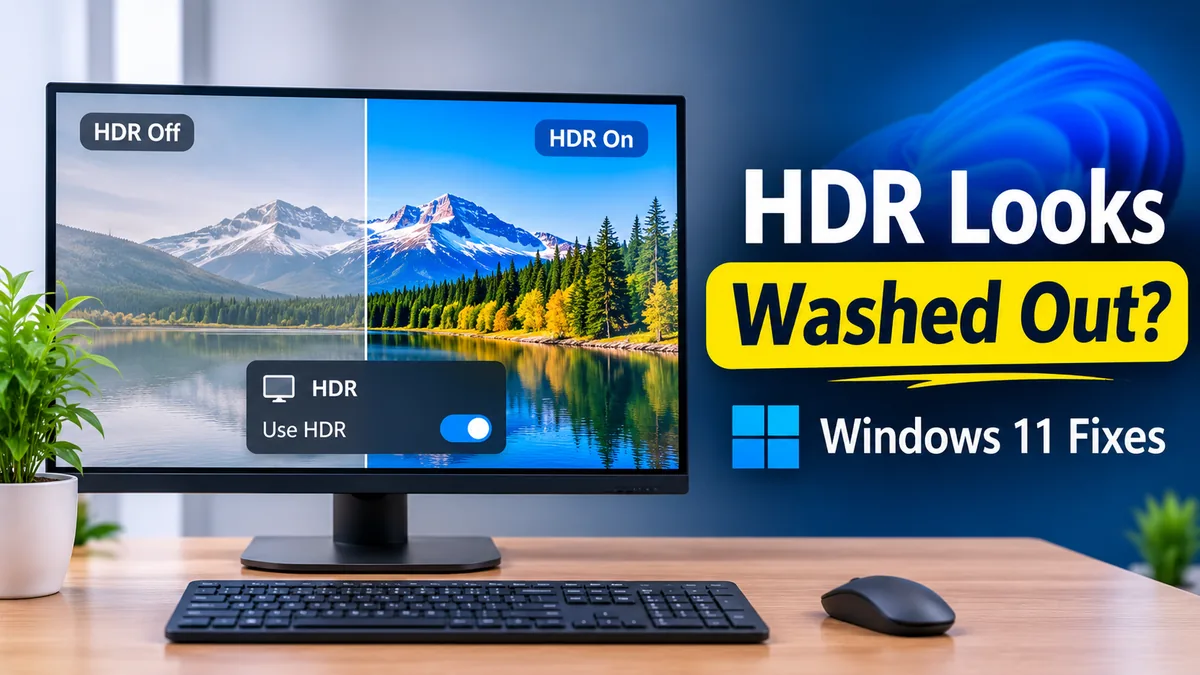
HDR Looks Washed Out Windows 11? Fix It Fast
You turn on HDR Looks Washed Out Windows 11 expecting brighter highlights, richer colors, and better picture quality. Instead, your desktop suddenly looks gray, blacks appear faded, and everything seems less colorful than before. If HDR looks washed out Windows 11, you’re not alone.
This problem can happen even when your monitor supports HDR Looks Washed Out Windows 11 reports that the feature is enabled. In many cases, the issue comes from how Windows handles standard dynamic range (SDR) content on an HDR display. Incorrect brightness balance, graphics card output settings, monitor configurations, and outdated drivers can also affect the picture.
The good news is that you usually don’t need a new monitor or a complicated Windows repair. You just need to identify what’s causing the washed-out appearance and adjust the correct setting.
you’ll learn how to troubleshoot faded HDR Looks Washed Out Windows 11, restore proper contrast, adjust SDR brightness, check your graphics card’s color range, and calibrate your display for a more natural picture.
ALSO READ: Mouse Is Lagging Windows 11? 12 Easy Ways To Fix It
Why Does HDR Look Washed Out In Windows 11?
HDR Looks Washed Out Windows 11 stands for High Dynamic Range. It allows compatible displays to show a wider range of brightness and more detail in bright and dark areas than standard dynamic range (SDR).
However, most Windows desktop applications, websites, and everyday programs still use SDR. When HDR is enabled, Windows has to display this SDR content within an HDR signal. Depending on your monitor and its settings, the result can look less saturated, unusually bright, or washed out.
Here are some common reasons this happens:
- Incorrect SDR brightness: The SDR content brightness slider may be set too high or too low.
- Limited RGB output: Your graphics card may be sending a limited color range that doesn’t match your monitor.
- Poor HDR calibration: Incorrect calibration can affect brightness, contrast, and color saturation.
- Wrong color profile: An outdated or incompatible ICC profile can change how Windows displays colors.
- Monitor HDR settings: Your monitor’s picture mode or HDMI black-level setting may not match the signal.
- Auto HDR problems: Some games may look worse when Windows applies automatic HDR conversion.
- Graphics driver issues: An outdated or recently changed driver can affect display output.
Before changing several settings at once, check whether the problem appears only when HDR Looks Washed Out Windows 11 is enabled. This simple test can help you narrow down the cause.
Check Whether HDR Is Actually Causing The Problem
Start with a quick comparison. This helps you determine whether the washed-out appearance is related to HDR Looks Washed Out Windows 11 or another display setting.
- Press Windows + I to open Settings.
- Select System > Display.
- Choose your HDR-compatible monitor if you have multiple displays.
- Open the HDR settings.
- Temporarily turn off Use HDR.
- Look at your desktop, a familiar photo, and a video.
If the colors look normal after turning HDR off, the problem is probably related to HDR brightness balance, calibration, or your monitor’s HDR configuration.
If the colors still look faded with HDR Looks Washed Out Windows 11, investigate the RGB output range, color profile, monitor picture settings, and graphics driver.
This comparison is important because changing HDR Looks Washed Out Windows 11 won’t necessarily fix a color problem that exists even in SDR mode.
Adjust SDR Content Brightness In Windows 11
One of the first settings to check is SDR content brightness. Windows uses this control to adjust how standard desktop content appears while HDR Looks Washed Out Windows 11.
If the slider is too high, ordinary applications and desktop elements may look unusually bright. Colors can appear less rich, and the overall picture may lose contrast.
Here’s how to adjust it:
- Open Settings using Windows + I.
- Go to System > Display.
- Select your HDR-compatible display.
- Open HDR.
- Find the SDR content brightness slider.
- Move the slider gradually until the desktop looks natural.
Don’t immediately move the slider to its maximum or minimum position. Make small adjustments and compare the results using the same image or application.
Important: On an external HDR Looks Washed Out Windows 11, this setting adjusts SDR brightness relative to HDR content. On some built-in laptop displays, Windows uses a different control called HDR content brightness. The available options depend on your display.
Microsoft explains that SDR and HDR content are interpreted differently, so the ideal balance can vary between monitors. A setting that looks good on one display may not look right on another.
Run The Windows HDR Calibration App
If adjusting brightness doesn’t solve the problem, calibrate your HDR Looks Washed Out Windows 11.
Windows provides a free HDR Looks Washed Out Windows 11 app that helps configure the darkest visible details, brightest visible details, and color saturation. It can improve the consistency of HDR content when your display supports the required features.
Follow these steps:
- Open the Microsoft Store.
- Search for Windows HDR Calibration.
- Install the app if it’s available for your device.
- Make sure HDR is enabled in Windows.
- Open the calibration app.
- Follow the on-screen test patterns.
- Adjust the sliders according to the instructions.
- Save your calibration when you’re satisfied with the results.
During calibration, pay attention to the dark and bright test patterns. The goal is to preserve visible details without making dark areas look gray or bright areas lose detail.
When you reach the color saturation adjustment, avoid pushing it too far. Excessive saturation can make colors look unnatural.
If the display doesn’t support the app’s requirements, you may not be able to use it. Built-in laptop displays can also have different HDR Looks Washed Out Windows 11 video calibration options.
Set The Correct RGB Color Range
Incorrect RGB output settings can make a monitor look washed out even when HDR Looks Washed Out Windows 11.
RGB range describes the brightness values used to represent black, white, and everything between them. Full RGB commonly uses values from 0 to 255, while limited RGB uses values from 16 to 235 in an 8-bit signal.
Problems occur when the graphics card and monitor expect different ranges. For example, a monitor expecting Full RGB may display a Limited RGB signal with gray-looking blacks and reduced contrast.
If your monitor supports Full RGB, check your graphics card settings.
Change RGB Range in NVIDIA Control Panel
If you use an NVIDIA graphics card:
- Right-click the desktop.
- Open NVIDIA Control Panel.
- Select Display > Change Resolution.
- Choose the affected monitor.
- Find the output color format and select RGB, if supported.
- Find Output dynamic range.
- Select Full, if your display supports it.
- Click Apply.
Check your screen again to see whether black levels and contrast have improved.
Change RGB Range in AMD Software
For an AMD graphics card:
- Open AMD Software: Adrenalin Edition.
- Go to the Display section.
- Select the affected display.
- Find the Pixel Format setting.
- If supported, choose RGB 4:4:4 Pixel Format PC Standard (Full RGB).
The available options depend on your graphics card, connection, and monitor.
What If You Use Intel Graphics?
If your PC uses Intel graphics, open Intel Graphics Command Center or the available Intel graphics settings.
Look for display color format, quantization range, or a similar output setting. The exact name and available choices depend on your hardware and driver version.
Important: Don’t force Full RGB on every display. Some TVs and monitors require Limited RGB. The graphics card’s output and the display’s expected range must match. If the picture becomes worse, restore the previous setting.
Check Your Monitor Built In HDR And Picture Settings
Windows isn’t the only place where HDR Looks Washed Out Windows 11 settings can affect picture quality. Many monitors and TVs have their own image-processing options.
If the display is using an unsuitable picture mode, colors may look dull even when Windows is configured correctly.
Use your monitor’s physical buttons or on-screen display (OSD) menu to check these options:
- HDR Mode: Make sure the monitor is using an appropriate HDR mode when HDR content is displayed.
- Picture Mode: Try the Standard or appropriate HDR picture mode instead of an unusual preset.
- Black Level: Check whether the HDMI black-level setting matches the signal from your PC.
- Dynamic Contrast: Temporarily disable it to see whether it is interfering with brightness.
- Color Temperature: Use the default or neutral setting as a starting point.
- Color Gamut: Check whether the monitor has an sRGB or other suitable color mode.
Menu names vary by manufacturer, so your monitor may use different labels.
Change one option at a time. If you aren’t sure what a setting does, take a picture of the original configuration before changing it. That makes it easier to restore the previous settings.
Check And Correct The Windows Color Profile
Windows uses color profiles to help applications display colors correctly for a particular monitor.
If an incorrect or outdated ICC profile is assigned, the screen may look too warm, too cool, dull, or otherwise different from its normal appearance.
This can happen after replacing a monitor, installing a custom calibration profile, or changing display configurations.
To check your color profile:
- Open Settings.
- Select System > Display.
- Choose the monitor you’re troubleshooting.
- Open Color profile, if available.
- Review the assigned profile.
- Select the correct profile for your monitor if you have one.
You can also open the Windows Color Management tool:
- Press the Windows key.
- Search for Color Management.
- Open the application.
- Select the affected display.
- Review the available profiles.
Don’t remove every profile just to test the display. If you have a manufacturer-provided profile, keep it available. Only remove or replace a profile when you have identified it as incorrect or incompatible.
If your display supports automatic color management, you can also check whether enabling that option improves color consistency in supported applications.
Turn Off Auto HDR To Test Game Colors
Auto HDR Looks Washed Out Windows 11 to improve the appearance of supported SDR games by applying an HDR conversion. However, the result doesn’t look equally good in every game or on every display.
If your desktop looks normal but games appear faded after enabling HDR Looks Washed Out Windows 11 is worth testing.
Here’s how:
- Open Settings.
- Select System > Display.
- Open HDR.
- Find the Auto HDR option, if available.
- Turn it off temporarily.
- Restart the affected game.
- Compare the picture.
If the game looks better, Auto HDR Looks Washed Out Windows 11 may have been contributing to the problem.
For games with native HDR support, use the game’s own HDR settings and calibration options. Avoid enabling multiple HDR enhancement features at the same time unless you know how they interact.
You can turn Auto HDR back on whenever you want to compare the results.
Update Or Reinstall Your Graphics Driver
Graphics drivers control how Windows communicates with your GPU and display. A driver issue can affect color output, resolution, refresh rate, and HDR Looks Washed Out Windows 11 behavior.
If the problem started after a Windows update or graphics driver installation, checking the driver is a sensible next step.
Start by checking for updates:
- Open Settings.
- Select Windows Update.
- Choose Check for updates.
- Install relevant available updates.
- Restart your PC.
You can also check the graphics card manufacturer’s official software or support website for a compatible driver.
If the washed-out appearance started immediately after a graphics driver update, consider rolling back the driver:
- Right-click the Start button.
- Open Device Manager.
- Expand Display adapters.
- Right-click your graphics card.
- Select Properties.
- Open the Driver tab.
- Choose Roll Back Driver, if the option is available.
- Restart your PC.
Only roll back the driver when the timing suggests that the update caused the problem. Otherwise, use a compatible current driver rather than installing an older version without a reason.
Check Your Display Cable And Connection
A display connection can also affect how HDR Looks Washed Out Windows 11 signals reach your monitor.
This is especially worth checking if you recently changed your monitor, connected a TV, replaced an HDMI cable, or moved your PC to another display.
Try these checks:
- Disconnect and reconnect the HDMI or DisplayPort cable.
- Make sure the cable is firmly connected at both ends.
- Try another compatible port on your graphics card or monitor.
- Test another suitable cable if one is available.
- Check whether your monitor supports HDR Looks Washed Out Windows 11 through the connection you’re using.
- If your monitor supports DisplayPort and your current HDMI setup has compatibility issues, test DisplayPort.
Also check your monitor’s specifications. Not every HDMI port, cable, or display mode supports the same HDR Looks Washed Out Windows 11 capabilities.
If the problem disappears after changing the cable or port, the original connection may have been limiting the available display signal.
Turn Off Night Light And Other Color Filters
Night Light changes the screen’s color temperature to reduce blue light. Depending on its strength, it can make colors look warmer or different from their normal appearance.
Windows color filters can also change how the display looks.
To test Night Light:
- Open Settings.
- Select System > Display.
- Find Night light.
- Turn it off temporarily.
- Compare the screen colors again.
Next, check color filters:
- Open Settings.
- Select Accessibility > Color filters.
- Turn off color filters if they are enabled unintentionally.
If your colors return to normal, one of these display adjustments may have been responsible.
How To Identify The Actual Cause Of Washed Out HDR
You don’t need to try every possible fix blindly. Use the symptoms below to decide which setting to check first.
| What You Notice | Possible Cause | What to Check |
|---|---|---|
| Desktop looks gray only when HDR is enabled | SDR and HDR brightness balance | SDR content brightness |
| Black areas look gray even with HDR off | RGB range mismatch | GPU and monitor RGB settings |
| Colors changed after a monitor replacement | Incorrect color profile | Windows Color Management |
| Games look faded but desktop looks normal | Auto HDR or game HDR settings | Disable Auto HDR temporarily |
| Colors changed after a driver update | Graphics driver issue | Update or roll back driver |
| Picture looks different after changing HDMI cables | Connection or output configuration | Cable, port, and HDR support |
| Screen looks unusually warm | Night Light or color filters | Display and Accessibility settings |
This symptom-based approach can save time and help you avoid changing settings that are already correct.
Final Thoughts
When HDR looks washed out Windows 11, the problem is often related to display configuration rather than a faulty monitor. Windows has to balance SDR desktop content with HDR Looks Washed Out Windows 11 output, and the wrong brightness, color range, or calibration settings can make the picture look faded.
Start by comparing the screen with HDR Looks Washed Out Windows 11 turned off and on. Then adjust SDR content brightness, check your GPU’s RGB output, review your monitor settings, and run the Windows HDR Calibration app if your display supports it.
If the problem continues, check the Windows color profile, HDR Looks Washed Out Windows 11, graphics drivers, and display connection. Make one change at a time so you can identify what actually improves the picture.
With the right settings, you can get more natural colors, better contrast, and a much better HDR Looks Washed Out Windows 11.
FAQs
Why does HDR look washed out in Windows 11?
HDR can look washed out because Windows displays SDR desktop content within an HDR signal. Incorrect SDR brightness, monitor settings, RGB range mismatches, and poor calibration can also reduce contrast and make colors appear faded.
Should I turn HDR off if colors look washed out?
Not necessarily. First, adjust SDR content brightness and check your monitor’s HDR configuration. If you mainly use desktop applications and prefer their appearance in SDR, turning HDR off when you’re not watching HDR content or playing HDR games is also a reasonable choice.
How do I make HDR colors more vibrant in Windows 11?
Start by adjusting SDR content brightness and running the Windows HDR Calibration app. Check your monitor’s picture mode and color settings as well. Avoid increasing saturation too much because it can make colors look unnatural.
Why do blacks look gray when HDR is enabled?
Gray-looking blacks can result from an RGB range mismatch, incorrect monitor black-level settings, or HDR tone mapping. Compare the picture with HDR disabled. If blacks still look gray, investigate the GPU output range and monitor settings.
Does Windows 11 have an HDR calibration tool?
Yes. Windows 11 supports the Windows HDR Calibration app, which is available through the Microsoft Store for compatible displays. It helps adjust visible dark details, peak brightness, and color saturation.
Can an outdated graphics driver cause washed-out colors?
Yes. Graphics drivers manage display output and color settings. A driver update or compatibility problem can change how your GPU sends a signal to your monitor. Updating or, when appropriate, rolling back the driver can help.
ALSO READ: Printer Offline Windows 11? 8 Ways To Fix It